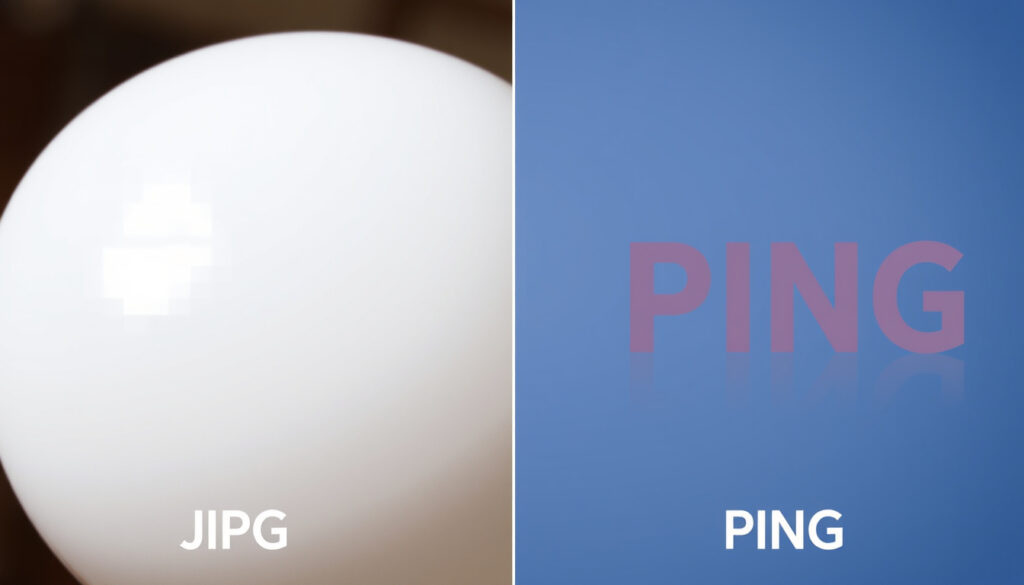
What Is JPG vs PNG? Differences, Uses, and Which Format to Choose
Anyone who’s saved an image from a phone or a website has faced the choice: JPEG or PNG? The difference isn’t just in the file extension — it decides whether your photo loads fast or keeps its sharp edges, and whether that transparent background stays transparent. Here’s how each format performs, so you know which one to pick for photos, screenshots, logos, and everything in between.
JPEG average file size reduction: 80-90% compared to uncompressed ·
PNG supports transparency: Yes ·
JPEG maximum resolution: 65,535 x 65,535 pixels ·
PNG maximum color depth: 48-bit (16-bits per channel)
Quick snapshot
- JPEG uses lossy compression, discarding some data to shrink file size (Ionos (web hosting guide))
- PNG uses lossless compression, preserving every pixel exactly (Adobe (Creative Cloud documentation))
- PNG supports transparency via alpha channel; JPEG does not (libpng.org (official PNG specification))
- JPEG is recommended for photos; PNG for graphics, text, and screenshots (Diffen (comparison reference))
- Whether saving a JPEG at 100% quality is lossless — it is not, because the format always discards some data (Adobe (Creative Cloud documentation))
- Whether JPEG files can be edited repeatedly without quality loss — they cannot; each save compounds artifacts (Ionos (web hosting guide))
- Whether PNG files are always larger than JPEGs for all images — no, for simple graphics with few colors PNG can be smaller (Adobe (Creative Cloud documentation))
- Whether the alpha channel in PNG is supported by all browsers — yes, but older Internet Explorer had quirks (libpng.org (official PNG specification))
- No major timeline changes: both formats remain standards for web and print in 2025 (Ionos (web hosting guide))
- Newer formats like WebP and AVIF offer better compression than both, but JPEG and PNG remain dominant for compatibility (DEV Community (developer guide))
| Attribute | JPEG | PNG |
|---|---|---|
| File extension(s) | .jpg or .jpeg | .png |
| Compression type | Lossy — discards image data (Ionos (web hosting guide)) | Lossless — preserves all data (Diffen (comparison reference)) |
| Transparency | Not supported (Adobe (Creative Cloud documentation)) | Supports alpha channel (libpng.org (official PNG specification)) |
| Max colors | 16.7 million (24-bit) | 16.7 million (RGB) or indexed palettes |
| Typical file size (photo) | 5–10× smaller than PNG at similar visual quality (Ionos (web hosting guide)) | Larger, especially for continuous-tone images (Adobe (Creative Cloud documentation)) |
| Best use case | Photos, continuous-tone images, web (Diffen (comparison reference)) | Graphics, text, logos, screenshots (libpng.org (official PNG specification)) |
Are PNGs better than JPEGs?
What is the difference in quality?
JPEG uses a lossy compression method based on DCT (discrete cosine transform) that throws out subtle color detail to shrink file size (Diffen (comparison reference)). At a moderate quality setting, a JPEG might look identical to the original to most eyes — but it has permanently discarded data. PNG, on the other hand, uses DEFLATE-based lossless compression that reduces file size without discarding any pixels (Ionos (web hosting guide)). The result: PNG files are often several times larger than their JPEG counterparts for the same photo, but they preserve every detail.
- JPEG at quality 80-90%: visually near-lossless for photos, but introduces artifacts visible on zoom (Adobe (Creative Cloud documentation))
- PNG: every pixel is stored exactly as captured — perfect for images with fine text or sharp edges (libpng.org (official PNG specification))
Do PNG files lose quality?
No — PNG is lossless, meaning every save preserves the exact original pixel data (libpng.org (official PNG specification)). However, if you start with a blurry or low-resolution image, saving it as PNG won’t restore lost detail. The format only maintains what’s already there.
Is PNG better than JPEG 100%?
Not for every scenario. For a photograph with many colors and gradients, a JPEG at a high quality setting looks nearly identical to a PNG but occupies a fraction of the space (Ionos (web hosting guide)). For a screenshot with text or a logo with transparent background, PNG is clearly superior because JPEG would introduce blurry artifacts around letters and fill transparency with a solid color (Adobe (Creative Cloud documentation)).
JPEG gives you 80-90% smaller files for photos at the cost of irreversible quality loss. PNG gives you perfect pixel preservation but files that can be 5-10 times larger. For a photographer sending 500 images to a client, JPEG is the only practical choice. For a designer delivering a logo with a transparent background, PNG is mandatory.
The pattern: “PNG is better” only applies when image integrity — sharp edges, transparency, no data loss — matters more than file size. For most everyday photos, JPEG’s smaller size wins.
Should I save photos as JPEG or PNG?
JPG or PNG for printing
For printing, high-quality JPEGs (quality 90-100%) are widely accepted and deliver sharp prints because print resolution is typically 300 DPI regardless of format (Adobe (Creative Cloud documentation)). PNG is overkill for most photos unless the image needs a transparent background for a brochure or magazine layout. The larger file size of PNG doesn’t improve print quality enough to justify the storage cost for batch printing.
JPG or PNG for social media
Instagram, Facebook, and Twitter all recompress images on upload, so the original format matters less than you’d think. However, JPEG’s smaller file size means faster uploads and less likelihood of the platform downscaling your image (Ionos (web hosting guide)). PNG files, especially for graphics with text, keep sharp edges through social media’s compression cascade. For Instagram photos, JPEG is the standard. For Instagram graphics or quote cards, PNG is sharper.
Is PNG or JPG better quality for Instagram?
JPEG is what most photographers use for Instagram because the platform’s maximum image width is 1080px — at that resolution, JPEG artifacts are barely visible. PNG can retain slightly more detail in areas with text or gradients, but the quality difference on a phone screen is often negligible. The real winner on Instagram is the smaller file: JPEG loads faster and is less likely to be further compressed by the app’s own processing (Adobe (Creative Cloud documentation)).
The catch: for social media posts that mix text and photos — like carousel posts — PNG is better because text stays crisp. For pure photography carousels, JPEG is the smarter choice.
Is a screenshot a PNG or JPEG?
Difference between JPG and PNG screenshot
Most operating systems — Windows (Snipping Tool), macOS (Shift+Command+4), and iOS — save screenshots as PNG by default (Adobe (Creative Cloud documentation)). This is because screenshots typically contain text, icons, and sharp edges that JPEG’s lossy compression would distort. A JPEG screenshot of a text-heavy page will show blurring around letters and splotchy artifacts in solid-color areas like toolbars or white backgrounds.
Why screenshots often use PNG
PNG preserves every pixel of the screen capture, including crisp edges around text, perfect color fills, and any partially transparent interface elements (libpng.org (official PNG specification)). If you save a screenshot as JPEG, you’ll notice “ringing” artifacts near high-contrast edges — for example, black text on a white background will develop faint gray halos. For documentation, tutorials, or any use where legibility matters, PNG is the recommended format.
A designer sending a screenshot of a UI mockup as JPEG risks the client seeing blurry text and false colors. A photographer using PNG for a gallery of 100 images faces unnecessarily long load times. The format decision directly affects both perceived quality and page performance.
The implication: if you’re capturing a screenshot for a guide, bug report, or presentation — always use PNG. If the screenshot is just a quick reference for yourself and file size matters, JPEG is acceptable, but expect quality loss in text areas.
What are the disadvantages of using PNG?
Larger file size
PNG files are often 5-10 times larger than JPEG equivalents for photographic images (Ionos (web hosting guide)). A 10 MB PNG photo might compress to 1-2 MB as a JPEG at medium quality. For websites, this means slower load times and higher bandwidth costs. For email attachments, large PNG files can bounce or get rejected by size limits.
Not suitable for photographs with many colors
PNG’s lossless compression works less efficiently on continuous-tone images like photographs, where adjacent pixels have many subtle color variations. JPEG’s lossy algorithm, designed for exactly this scenario, achieves much better compression ratios (Adobe (Creative Cloud documentation)). A high-resolution photo saved as PNG could be 15-30 MB, while the same photo as JPEG might be 2-4 MB with barely perceptible quality loss.
Disadvantages of JPEG compared to PNG
- Lossy compression: every save degrades quality, especially if re-saved repeatedly (Adobe (Creative Cloud documentation))
- No transparency support: transparent areas are filled with a solid color (Ionos (web hosting guide))
- Artifacts near text and sharp edges: blurring and “ringing” around high-contrast boundaries (libpng.org (official PNG specification))
- Not ideal for graphics with large areas of solid color: artifacts appear in uniform fills (Diffen (comparison reference))
The trade-off: PNG’s disadvantages are mostly about size. JPEG’s disadvantages are mostly about quality loss. Your use case decides which set of problems you’re willing to accept.
Why is my PNG so blurry?
Common causes of blurriness: scaling and compression settings
A blurry PNG is almost never caused by the PNG format itself. The usual culprit is upscaling — enlarging a small image to a larger size without sufficient source resolution. When you increase the dimensions of a 200×200 pixel image to 800×800, the software has to “guess” the missing pixels, resulting in a soft, blurry result. Another common cause: the original image was already blurry (a poorly focused photo or low-res JPEG) and saved as PNG, which preserves the blur.
Why is my JPEG so blurry?
JPEG blurriness usually comes from aggressive compression settings. At quality levels below 50-60%, JPEG’s lossy algorithm discards so much high-frequency detail that images look soft or “smudgy” (Ionos (web hosting guide)). Unlike PNG, which preserves sharpness but enlarges files, JPEG trades sharpness for size. If your JPEG looks blurry, the fix is to export at a higher quality setting (80-95%) rather than switching formats.
How to check if image is JPEG or PNG
On Windows: right-click the file, select Properties, and look under “Type of file” or the Details tab. On macOS: right-click, Get Info, and see “Kind.” On most phones and tablets, long-press the image and select Info or Details. You can also open the file in any text editor — JPEG files start with the bytes `FF D8 FF` while PNG files start with `89 50 4E 47`.
The catch: blurriness is almost never a format problem — it’s a resolution or compression-quality problem. Switching from JPEG to PNG won’t fix a blurry photo, just as switching from PNG to JPEG won’t fix a low-resolution image.
Pros and Cons
Upsides
- JPEG: very small file sizes for photos, universal browser support, adjustable compression quality
- PNG: lossless preservation of every pixel, supports full transparency, sharp edges for text and graphics
- Both formats are supported by every modern device, browser, and editing tool
Downsides
- JPEG: lossy compression degrades quality, no transparency support, artifacts near text and sharp edges
- PNG: file sizes are much larger, not ideal for continuous-tone photos, older browser quirks with gamma handling
- Both formats are losing ground to newer standards like WebP and AVIF
“JPEGs contain less data than PNGs — and therefore, are usually smaller in size.”
Adobe (Creative Cloud documentation)
“JPG is preferred for images requiring smaller file sizes, while PNG is better for images with transparent backgrounds or fine details.”
The choice between JPEG and PNG is less about which is “better” and more about matching the format to what your image contains and where it appears. For anyone managing images on a website or sending files by email, the difference in load time and clarity can determine whether a visitor stays or leaves.
If you need to convert images to a portable document, check our guide: Convert Photo to PDF: Free Online Converter & Guide. For quick sharing, generate QR codes for your image links using the QR Code Generator for Links & Mobile Enrollment.
webpery.com, truetools.org, compresto.app, reddit.com, toolsphere.in, dev.to, mioffice.ai
Frequently asked questions
Can I convert PNG to JPEG?
Yes. Most image editors (Photoshop, GIMP, Preview on macOS, and online converters like CloudConvert) let you save a PNG as JPEG. However, if the PNG has transparency, the converter will replace transparent areas with a solid color (usually white) as JPEG does not support transparency (Adobe (Creative Cloud documentation)).
Should I use JPG or JPEG?
They are identical. JPG was a legacy filename shortening for older Windows systems that required three-letter extensions. Both .jpg and .jpeg open the same way and have the same compression behavior. Use whichever your system requires, or stick with .jpg for wider compatibility (Ionos (web hosting guide)).
How do I know if my photo is JPEG?
Check the file extension (.jpg or .jpeg). On Windows, right-click and select Properties. On macOS, Get Info. Most phone cameras save photos as JPEG, while screenshots are usually PNG. You can also open the file in a text editor — JPEG files begin with `FF D8 FF`.
What is the difference between JPG and JPEG?
No technical difference — JPG is simply an abbreviation of JPEG that fits the 3-character file extension limit of older Windows versions. The format, compression, and quality are identical. Both extensions refer to the Joint Photographic Experts Group standard.
Can I convert JPEG to PNG?
Yes. Converting JPEG to PNG does not improve quality — the lossy data already removed by JPEG cannot be recovered. However, it can be useful if you need transparency or want to avoid JPEG artifacts when editing and re-saving repeatedly.
Why is my JPEG file so large?
Your JPEG might be saved at a high quality setting (95-100%) or have very high resolution. You can reduce file size by lowering quality to 80-85% — this often cuts size by half with minimal visual difference. Also check if your image resolution is unnecessarily high for web use (e.g., 4000px wide when 1200px would suffice) (Ionos (web hosting guide)).
Is PNG better for logos?
Yes — PNG is the standard for logos because it supports transparency (so the logo can sit on any background) and preserves sharp edges around text and shapes. JPEG’s compression would introduce blurry artifacts around the logo’s borders and fill the background with a solid color (Adobe (Creative Cloud documentation)).
Which format is best for email attachments?
JPEG is usually better for email because of smaller file sizes — most email servers have attachment limits (10-25 MB). A high-quality JPEG of a photo is typically 1-3 MB. PNG versions of the same photo could be 5-15 MB, risking rejection. For graphics or logos with transparency, PNG is acceptable if file size stays under limits.
For anyone choosing between JPEG and PNG, the decision is clear: use JPEG for photos and any image where file size matters more than perfect pixel preservation. Use PNG for graphics, logos, screenshots, and any image that needs transparency or contains sharp text. Stick with that rule, and you’ll never send a blurry screenshot or a bloated photo again.
More related posts
 Buy Used Car Singapore: 2025 Guide to Prices & Platforms
 City Developments Share Price: Buy or Sell
 Combined Science O Level Tuition: Costs, Grades & Best Options
 Inter Miami vs New York City: Match History, Ownership & Where to Watch
 Saham dengan Penurunan Terdalam: Deepest IDX Stock Declines
 Najib Razak Verdict Reactions: 1MDB Scandal Conviction Analysis
 Therica Wilson-Read: Age, Witcher Role, Movies & Bio
 ETS KL to JB 2026: Schedule, Fares & Complete Travel Guide