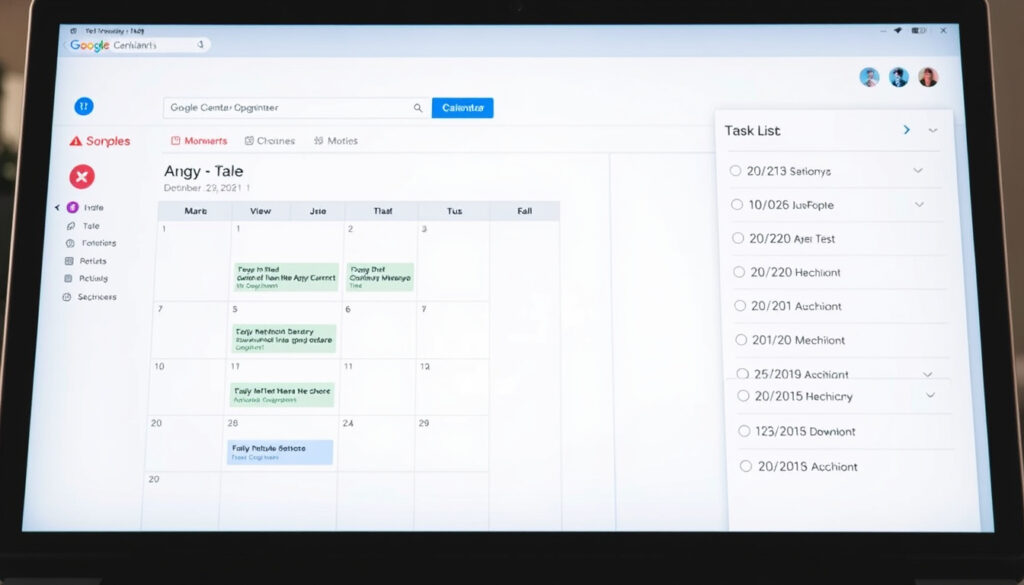
How to Use Google Calendar Tasks: Step-by-Step Guide
Anyone who has tried to keep track of daily to-dos while staring at a packed calendar knows the struggle: should that dentist appointment be an event or a task? The answer isn’t always obvious, but Google Calendar gives you both, and this guide walks through exactly how to use Google Calendar tasks — from creation to completion — so you can turn your calendar into a lightweight project manager, anchored by the fact that Google Tasks launched in 2018 and integrates directly into the calendar sidebar, making it a zero-cost companion for tracking action items without leaving your schedule.
Launch year: 2018 ·
Integration with Calendar: Automatic date-based syncing ·
Platforms supported: Web, Android, iOS
Quick snapshot
- Use sidebar on desktop or tap empty slot on mobile (Google Calendar Help).
- Set due dates and times to appear on calendar (Google Calendar Help).
- Organize tasks into multiple lists (Google Tasks Help).
- Mark complete to dim them on calendar (Google Calendar Help).
- Events vs tasks: time-bound vs to-do (TechRepublic).
- Tasks sync with Google Tasks app (Google Tasks Help).
- Use tasks as lightweight project tracking (TechRepublic).
- Combine with Google Keep for details (ClickUp).
Five key specs, one pattern: Google Tasks is a free, integrated layer that lives alongside events but operates as a separate check-list system.
| Attribute | Value |
|---|---|
| Launch year | 2018 |
| Platforms | Web, Android, iOS |
| Integration with Calendar | Automatic date-based syncing |
| Reminders migration | 2023: Google Reminders became tasks (Google Calendar Help) |
| Number of free lists | Unlimited (up to 100,000 tasks per list) (Google Tasks Help) |
How to use Google Calendar and tasks effectively?
Using Google Calendar tasks effectively means treating them as action items with deadlines, not as meeting blocks. The core workflow is simple: create a task, set a due date, mark it done.
Accessing Google Tasks from Google Calendar
On the web, open Google Calendar and look for the Tasks tab in the right sidebar. Click it to reveal your task lists. On mobile, tap the plus sign and select Task (TechRepublic).
Creating your first task
- Click any empty date slot or press the Create button, then choose Task (Google Calendar Help).
- Add a title, optional notes, due date, and time. Recurrence is supported for repeated to-dos (Google Calendar Help).
- Completed tasks remain visible in a dimmed state — a handy way to see what you’ve already crossed off (Google Calendar Help).
A user who creates one task per project milestone can turn the calendar sidebar into a lightweight Gantt chart. The catch: there are no dependencies or assignees, so this works only for solo or small-scale tracking.
The pattern: tasks are best for deadline-driven checklists, not meeting coordination. Use events for anything that needs guest lists, video links, or time-block availability (TechRepublic).
How do I put Google Tasks on Google Calendar?
Getting tasks onto your calendar is straightforward: they appear automatically when you assign a date. No extra sync required.
Adding tasks on desktop
- Open the Tasks sidebar, create a new task, and set a date. It instantly appears at the top of that date on the calendar.
- You can also click the calendar grid and choose Task from the pop-up menu (Google Calendar Help).
Adding tasks on mobile (Android and iOS)
- On Android: long-press an empty slot in the day view, then tap Add task.
- On iOS: tap the floating plus button (+) and select Task (ClickUp).
- Both platforms let you edit the due date, time, and notes before saving.
The implication: tasks are friction-free to add, but they lack the rich editing options of events — no conferencing, no guest invitations.
What’s the difference between Google Calendar and Google Tasks?
Google Calendar is a time-based scheduler; Google Tasks is a to-do list app. They are integrated but serve different purposes.
Events vs tasks: core differences
- Events have a fixed start and end time and occupy a visible block on the calendar grid. They support guests, conferencing, descriptions, and custom reminders.
- Tasks are to-do items with optional due dates and times. They appear in a separate sidebar list and show at the top of the calendar day, not as blocks.
When to use events vs tasks
- Use events for meetings, appointments, and any time-bound commitment that requires scheduling against others.
- Use tasks for personal or work to-dos that have a deadline but don’t need a time slot — e.g., “Submit report by Friday” (ClickUp).
- Events can be used as planning blocks for focused work, but they lack a completion checkbox (TechRepublic).
Choosing a task over an event means losing calendar visibility (no block) and collaboration features. The gain: a tickable, completable unit that lives across Gmail, Calendar, and the Tasks app.
The pattern: use events for scheduling and tasks for to-do completion.
Where do Google Calendar tasks go?
Tasks have two homes: the date you set on the calendar and the Tasks sidebar list.
Tasks with due dates
- Appear at the top of the assigned day in the calendar grid, below all-day events but above hourly events.
- They show a checkbox and title, and clicking them opens the task detail panel (Google Calendar Help).
Tasks without due dates
- Stay only in the Tasks sidebar under the “No date” section. They do not appear on the calendar grid (Google Tasks Help).
The calendar sidebar view
- Open the Tasks panel from the right sidebar (web) to see all lists and their tasks, regardless of date.
- Tasks are also visible in Gmail, Google Docs, and other Workspace apps via the side panel (Google Tasks Help).
What this means: tasks are always accessible from the sidebar, but only dated tasks get calendar real estate. If you want a visual reminder on the grid, assign a due date.
Is Google Tasks worth using?
For anyone already in the Google ecosystem, the answer is mostly yes — with important caveats.
Pros of Google Tasks
- Free, no ads, unlimited lists and tasks (Google Tasks Help).
- Deep integration with Gmail, Calendar, and Workspace side panels.
- Easy to create and complete tasks from anywhere.
Cons and limitations
- No subtasks, no labels/tags, no natural language input (ClickUp).
- Shared tasks only work within Google Workspace — no public sharing.
- No project management features like dependencies, Kanban boards, or status tracking (TechRepublic).
Alternatives to consider
If you need subtasks, try Todoist or TickTick. For full project management, Trello, Asana, or Monday.com offer structured workflows. Google Tasks shines when simplicity and integration matter most.
Three comparison points, one clear divide: tasks are for ticking off, events are for scheduling.
| Feature | Google Calendar Event | Google Task |
|---|---|---|
| Calendar display | Time block on grid | Checkbox at top of day |
| Guests & collaboration | Yes | No (only Workspace shared lists) |
| Completion tracking | No checkbox | Checkable, dims when done |
| Recurrence | Yes | Yes (basic) |
Upsides
- Free with Google account
- Integrated across Workspace apps
- Quick to create and complete
- Unlimited lists
Downsides
- No subtasks or labels
- No natural language input
- Limited collaboration outside Workspace
- No dependency management
Step-by-step: Add your first Google Calendar task
Follow these five steps to create and complete a task in under 30 seconds.
- Open Google Calendar in a browser and click the Tasks icon (checkmark) in the right sidebar.
- Click Add a task and type a title. Optionally add notes.
- Click Date and pick a due date. You can also set a time and recurrence (Google Calendar Help).
- Press Save. The task appears at the top of that date on the calendar.
- When done, check the box next to the task title. It dims and stays visible for record-keeping.
The catch: marking a task complete does not delete it. You can delete tasks manually or let them accumulate as a history log.
What we know and what’s uncertain
Confirmed facts
- Tasks with due dates appear on Google Calendar at the start of the due day (Google Calendar Help).
- Google Tasks is a free service within Google Workspace (Google Tasks Help).
- Tasks can be shared with Google Workspace users via shared lists (Google Tasks Help).
What’s unclear
- Whether Google will add advanced project management features like Kanban boards (Lisa McChesney).
- Future integration with other Google apps beyond Calendar and Gmail.
The confirmed facts provide a solid foundation, though uncertainties remain about future features.
What users and documentation say
“I use the Tasks sidebar in Calendar as a simplified project management system — each list is a project, each task is a milestone.”
Reddit user in r/GoogleTasks
“You can create tasks from the Calendar Create menu on desktop and from the plus menu on mobile. Tasks are to-dos, not meetings.”
Google Workspace documentation (Google Calendar Help)
For the solo worker or small team already living in Gmail and Calendar, Google Tasks offers a free, friction-free way to track to-dos alongside appointments. The limitation — no subtasks, no dependencies — means it’s not a replacement for dedicated project management tools. For the average Google Workspace user, the choice is clear: use tasks for personal deadlines and event blocks for collaborative time slots, or combine both for a lightweight project dashboard that costs nothing.
youtube.com, youtube.com, lisamch.com, scheduleit.com, support.google.com
For teams that need to coordinate schedules, sharing your Google Calendar can be a natural next step after setting up your task lists.
Frequently asked questions
Can I assign tasks to other people?
Only if both users are on Google Workspace and share a task list. Tasks cannot be assigned to non-Workspace accounts (Google Tasks Help).
How do I set a reminder for a task?
Tasks can include a due date and time, but notifications are controlled by the task’s due time. You cannot add custom reminders like 15 minutes before — that’s an event feature (Google Calendar Help).
Can I create subtasks in Google Tasks?
No. Google Tasks does not support subtasks or indentation. For hierarchical to-dos, use a third-party tool like Todoist (ClickUp).
How do I delete a task?
Open the task detail panel (click the task from the sidebar or from the calendar) and click the trash icon. On mobile, swipe left on the task and tap Delete.
Does Google Tasks have a mobile app?
Yes, the Google Tasks app is available for both Android and iOS. It syncs with the tasks in Calendar and Gmail (Google Tasks Help).
How do I sync Google Tasks with Google Keep?
Google Tasks and Google Keep are separate apps. There is no direct sync. You can manually copy notes from Keep into a task’s description field.
What happens when I mark a task as complete?
The task dims on the calendar and the sidebar. It stays visible until you delete it. Completed tasks can be viewed in the “Completed” section of each list.
These answers address the most common queries about Google Tasks integration.
Related reading: How to Build Good Habits · Delete Browsing History Chrome iPhone Android
More related posts
 CapitaLand REIT Share Price: Is It a Good Buy? (2026)
 Cuaca Singapore Hari Ini – Current Weather & Sea onal Guide
 Yoga Movement Holland Village: Classes, Facilities & Reviews
 178 cm in Feet: Exact Conversion & Common Questions
 Sentosa Line Cable Car: Tickets, Route & History (2025)
 Which Constituency Am I in Singapore? Find GRC or SMC (2025)
 Where to Go in Osaka: Neighborhoods, Attractions & Itinerary
 EVA Air Flight Attendant Died: Milan Flight Incident